01 — Add the OAuth Custom Connector
Walkthrough
Section titled “Walkthrough”This scenario is the one-time setup every new user goes through. Unlike the others, there’s not much chat — most of it happens in Claude Desktop’s Settings → Connectors UI and a browser tab. Once it’s done, every other scenario starts from “connector active”.
Step 1 — Open Add custom connector
Section titled “Step 1 — Open Add custom connector”In Claude Desktop:
- Click the gear icon (Settings)
- Pick Connectors in the left rail
- Click Add custom connector
A modal appears with two fields: Name and Remote MCP server URL.
Step 2 — Fill in the worker URL
Section titled “Step 2 — Fill in the worker URL”| Field | Value |
|---|---|
| Name | SEO Navigator |
| Remote MCP server URL | https://seo-navigator-mcp.autumn-recipe-cac7.workers.dev/mcp |
| OAuth Client ID | (leave blank — Dynamic Client Registration fills this) |
| OAuth Client Secret | (leave blank) |
Click Add.
Step 3 — Approve in browser
Section titled “Step 3 — Approve in browser”Claude opens a browser tab pointing at the worker’s
/oauth/authorize endpoint. The page is a small Tailwind form with two
fields and a consent screen:
- Username — enter your user account (created by the super-admin at
/admin/users) - Password — enter the account password
- Review the requested scopes (currently
mcp:full) - Click Approve
The browser tab closes itself and redirects back to Claude Desktop. The connector switches to Connected state with the available tool count displayed.
Step 4 — Confirm
Section titled “Step 4 — Confirm”In a new chat, click the 🔌 icon at the bottom. You should see seo-navigator with at least 31 tools listed. Try Scenario 02 to verify everything is wired up correctly.
How the OAuth handshake works
Section titled “How the OAuth handshake works”The worker implements OAuth 2.1 with PKCE + Dynamic Client Registration (RFC 7591). Claude does all of this transparently — these are the steps under the hood:
- Discovery — Claude fetches
/.well-known/oauth-protected-resourceand/.well-known/oauth-authorization-serverto learn the authorization + token + revocation URLs. - Dynamic Client Registration — Claude POSTs to
/oauth/registerwith its redirect URI. The worker returns a freshly-mintedclient_id(noclient_secret— this is a public client using PKCE). - Authorization — Claude redirects you to
/oauth/authorizewith a PKCE code challenge. You log in + approve. The worker issues an authorization code. - Token exchange — Claude POSTs the code + the PKCE verifier to
/oauth/token. The worker validates PKCE and returns anaccess_token(1-hour life) and arefresh_token(30-day life). - API calls — Every
/mcprequest includesAuthorization: Bearer oat_<random>. The worker maps that token to your user account and applies theuser_siteswhitelist. - Auto-refresh — When the access token nears expiry, Claude silently
POSTs the refresh token to
/oauth/tokenfor a new pair. You don’t see any of this.
The OAuth metadata endpoints are publicly readable — you can curl them without auth to confirm the worker is reachable before debugging the connector setup:
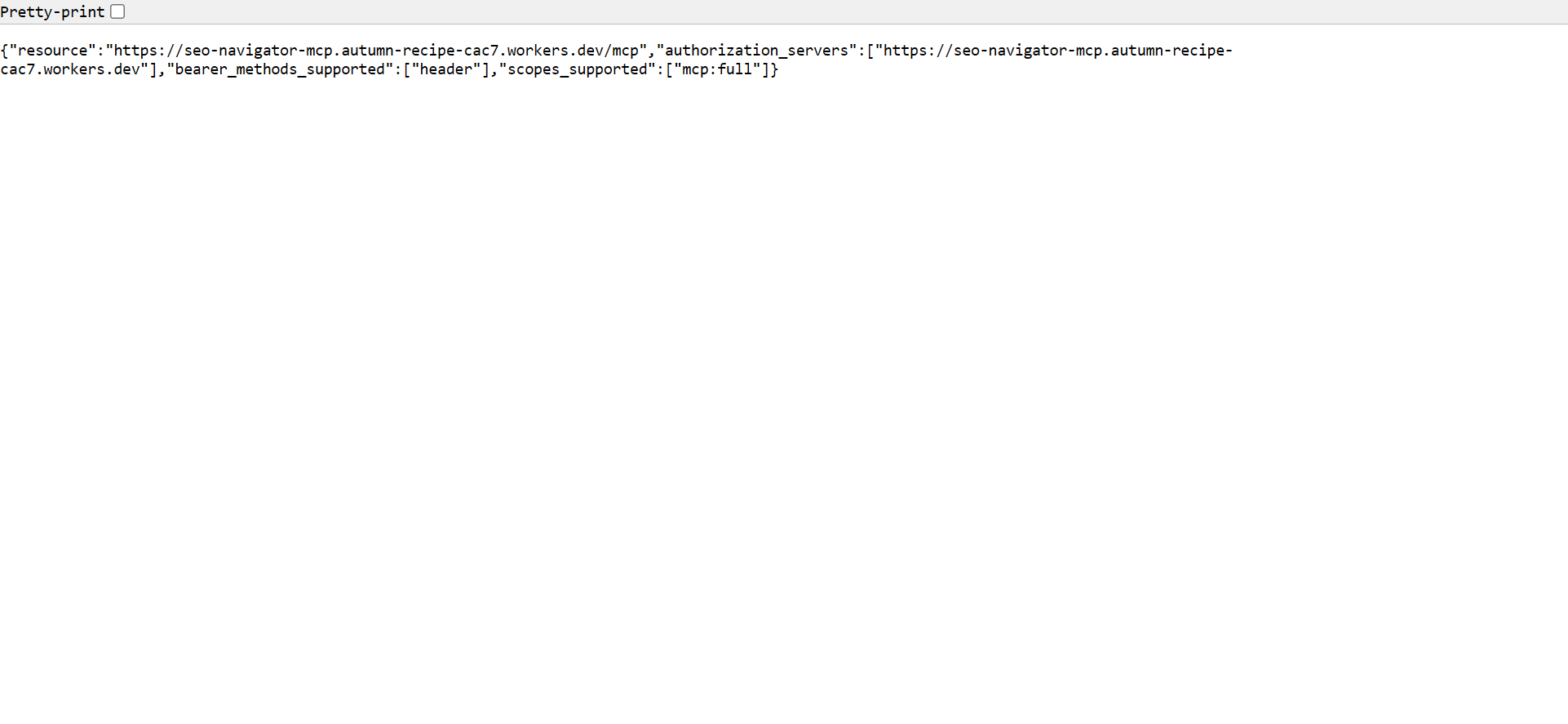
If this JSON loads in your browser, the worker is responsive. If it 404s or hangs, the connector won’t work either.
Common gotchas
Section titled “Common gotchas”- “OAuth callback didn’t return” / browser tab stuck loading — Almost always means the worker URL is typed wrong. Double-check the host part.
- “Invalid credentials” — The user account doesn’t exist or the
password is wrong. Reset in
/admin/users. - “Access denied” on the consent screen — You clicked Deny by mistake. Hit Cancel, restart from Step 1.
- Token revoked errors after a few days — Refresh token expired (30-day life). Re-run the OAuth flow.
Prove that a fresh Claude Desktop install can connect to seo-navigator-mcp.autumn-recipe-cac7.workers.dev over OAuth 2.1 (DCR + PKCE), and that the 🔌 menu picks up the server’s tools after approval.
Prerequisites
Section titled “Prerequisites”- Claude Desktop, latest stable version, signed into an Anthropic account.
- A user already provisioned in the SEO Navigator admin (email + password) with at least one site attached.
- The admin dashboard reachable at
https://seo-navigator-mcp.autumn-recipe-cac7.workers.dev/admin.
Setup state
Section titled “Setup state”- Claude Desktop is open on an empty conversation.
- No connectors are configured yet (or the previous SEO Navigator connector has been removed).
- A second browser tab is open on the admin dashboard, signed out, so the OAuth login screen will appear during the flow.
-
Action: In Claude Desktop, open Settings → Connectors → Add custom connector. Expected: A modal appears with fields for Name and Remote MCP server URL. Recorder: zoom on the modal as it opens; pause for half a second on the empty fields.
-
Action: Type the name
SEO Navigatorand paste the URLhttps://seo-navigator-mcp.autumn-recipe-cac7.workers.dev/mcp. Click Add. Expected: The connector appears in the list with status Needs authentication. A Connect button is shown. Recorder: highlight the/mcppath with a callout — this is the critical bit. -
Action: Click Connect. Expected: A browser tab opens on
…/oauth/authorize?…and shows the SEO Navigator login form (email + password). Recorder: cut to the browser tab; the URL bar should be visible so viewers can confirm the host. -
Action: Enter the test user’s email and password. Click Sign in. Expected: The page advances to the consent screen titled Authorize Claude Desktop, listing the requested scopes and the sites the token will be able to reach. Recorder: hold on the scope list for two seconds — this is the “trust” moment.
-
Action: Click the green Approve button. Expected: The browser shows a short success page (Connected. You can close this tab.) and Claude Desktop’s connector row flips to Connected. Recorder: split-screen the browser success page and the Claude Desktop connectors list flipping state.
-
Action: Close the browser tab and return to Claude Desktop. Click the 🔌 icon in the composer. Expected: The menu shows a SEO Navigator group with at least 31 tools listed (built-ins). Proxy tools may also appear if the linked sites use
wp-mcp-adapter. Recorder: scroll slowly through the tool list so viewers can see real names likelist_sites,create_draft,diagnose_site.
Verification
Section titled “Verification”- In a new chat, type
> Which MCP tools do you have access to from SEO Navigator?— Claude should enumerate the tools. - In the admin dashboard, Tokens table shows a fresh
oat_*row owned by the test user with Last used = just now. - The Audit log has an entry of type
oauth.token.issued.
Rollback / cleanup
Section titled “Rollback / cleanup”- In Claude Desktop: Settings → Connectors → SEO Navigator → Disconnect.
- In the admin dashboard: Tokens → revoke the
oat_*token just issued. - Confirm the audit log records
oauth.token.revoked.
Edge cases to capture in the recording
Section titled “Edge cases to capture in the recording”- Wrong URL (e.g. missing
/mcp): Claude Desktop displays Could not reach server. Show how the user fixes the URL. - Wrong password: the login form shows Invalid credentials inline; the user retries.
- Approve denied: clicking Deny returns the user to Claude Desktop with a red Authorization denied banner. Show the user clicking Connect again to retry.